Your first page
Pages are documents, not chats. Start one from the workspace top bar, give it a title, write a line, and save — your first version lands in the ledger.
Start a page
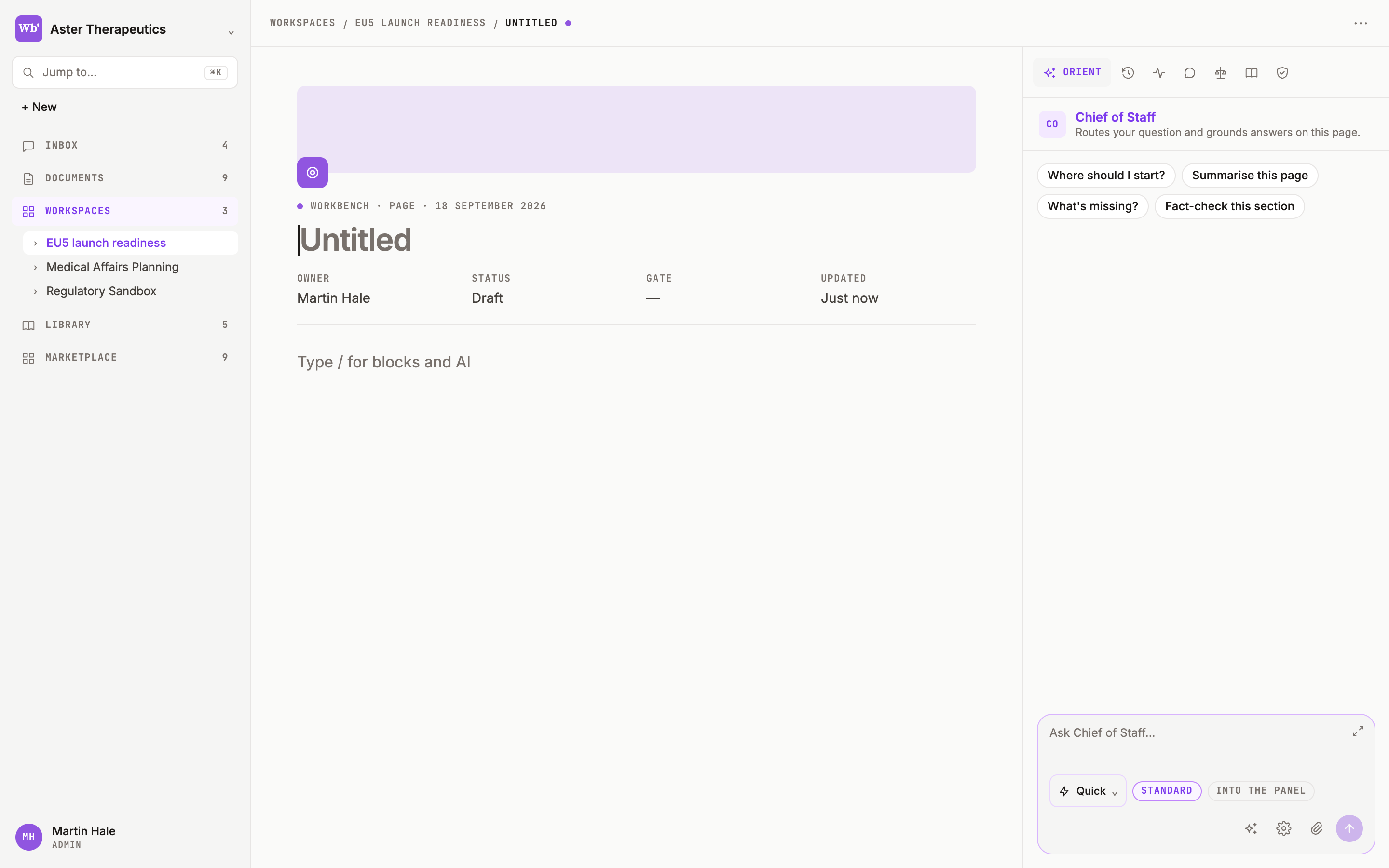
From a workspace home, click + New page in the top bar. A page opens with a cover strip, a page icon you can change, the eyebrow ● WORKBENCH · DOC · <date>, a title field, and a property grid: OWNER · AUTHOR · COMMENTER · WORKSPACE · CREATED · LAST EDITED.
Title and lede
Type a title — it's how the Chief of Staff and your colleagues will find the page. The first paragraph after the title renders as a serif lede: use it for the one sentence that says what the page is for.
Write, then save
Type a sentence and press Enter. Click the save icon in the toolbar (or ⌘S). Every save is a version; the Activity tab in the right panel records Manual save · <you> · EDIT and version snapshot v.1 · VERSION. Nothing on the platform happens off the record.
What else is on a page
- The / menu for blocks and AI actions — see The / menu.
- The AI button bottom-right, the same actions as a panel.
- A comment rail on the right edge, and backlinks in the footer.
- The Orient panel on the right — Asking on a page.