Edit · Generate · Review
What each AI action does to the page, and the accept-or-reject flow that applies to every one of them.
The flow, every time
- Pick an action from the / menu or the AI button. The menu shows three bouncing dots while it starts.
- The affected blocks get the violet selection tint; a thinking trail appears below —
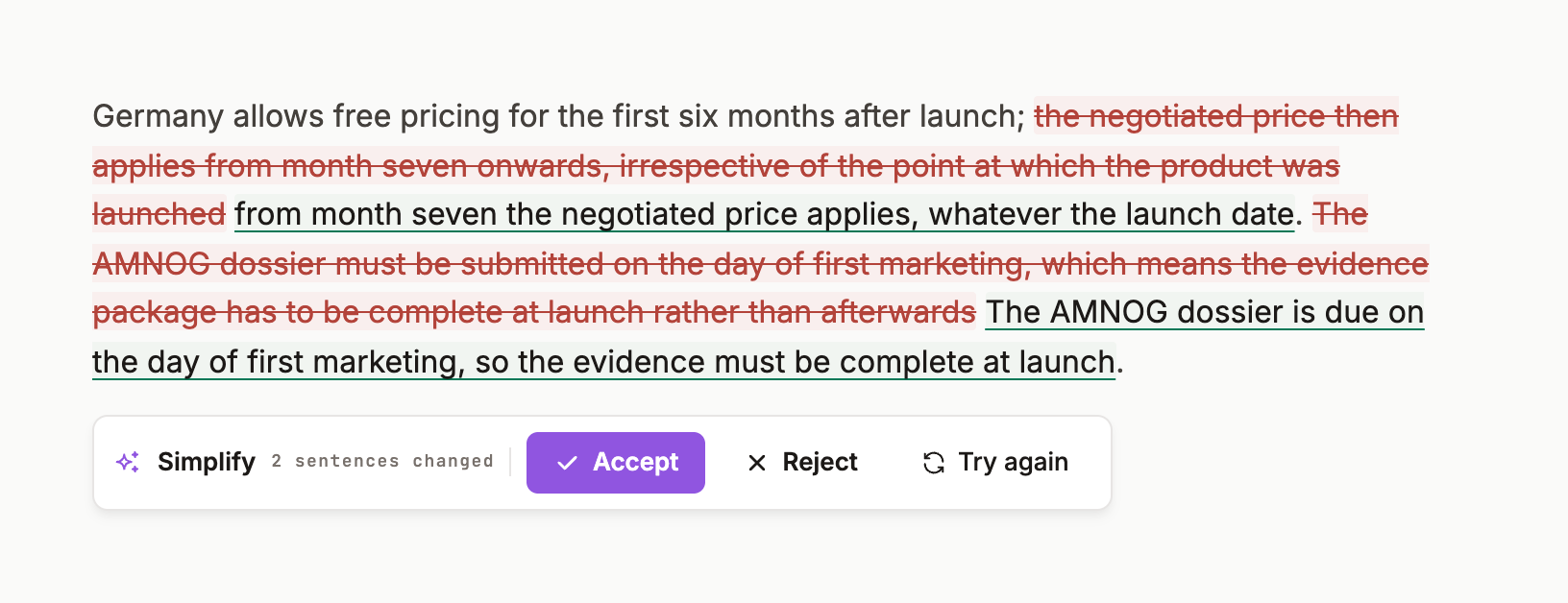
THINKING· Reading page for→ Composing → Chief of Staff dispatching supervised authoring worker., with a STREAMINGpill. - The collaboration caret — labelled Chief of Staff — writes. New blocks carry a grey pending highlight; edits show as an inline diff (deletions tinted red, insertions green).
- The review card appears: ✓ Accept · × Reject · ↻ Try again. Type in the card to give a custom instruction instead.
- Accept applies it and Activity records
edit applied · VERIFY marked stale. Reject discards it. Nothing is applied without your click.
Edit
Rewrites the block you're in (or the selection). Improve tightens; Simplify for a lay reader; Shorten / Lengthen; Continue writes on; Fix grammar; Translate to a language you pick; Develop expands a note into paragraphs.
Generate
Reads the whole page and adds new blocks under your cursor; it does not touch your text. Summarize page, Takeaways, Next steps, Ask page (a question answered from the page), Explain, FAQ, Synthesize themes, Diagram (a Mermaid block), Checklist / SOP, Define metrics, Tabulate.
Review
For content that will be read by a regulator or a payer. Restructure; Translate (pharma); Fact check and Check citations retrieve before they write (GROUNDED); Regulatory tighten removes promotional language; Fair balance disclaimer adds the balancing statement.
If it fails
The card turns to an error state — Something went wrong — retry or cancel — with Retry, undo and Cancel. Your page is unchanged until you accept something.