Pages · 3 of 3 · 1 min
Export and share
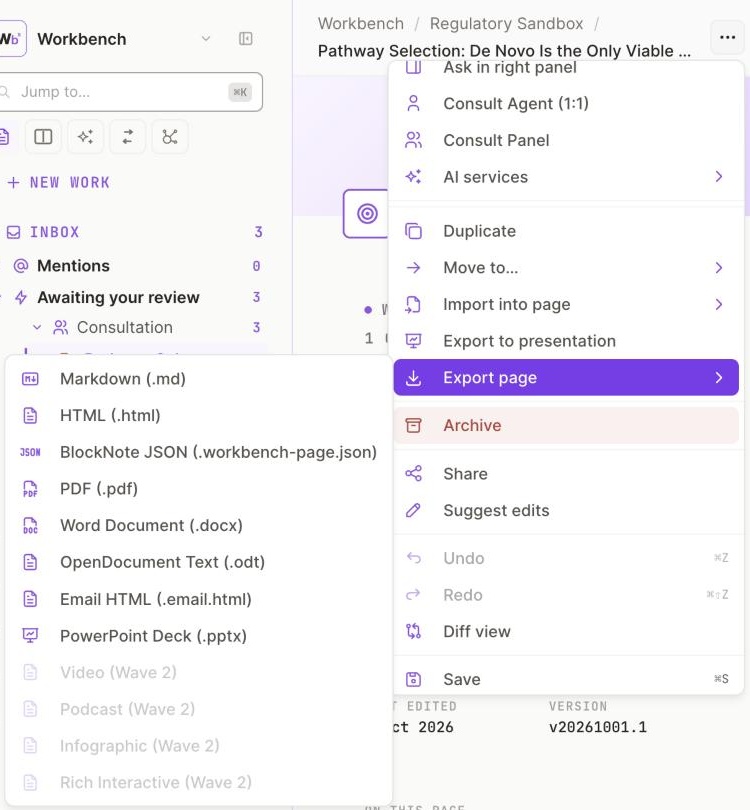
1 Export page: eight formats.2 Import into page.
Step 1 of 2From the page ⋯ menu, Export page.
- Export: open the page menu (⋯) and choose Export page: Markdown, HTML, BlockNote JSON, PDF, Word, OpenDocument, Email HTML or PowerPoint. Your administrator can turn off some formats.
- Import: from the same menu, Import into page brings a Markdown, CSV, JSON, Word, PDF or ODT file onto the page.
- Export the page with its record: on the Gates tab, Export downloads the page with its Memory, Record, Evidence and Verify.
- Share: set the page to private, shared or public, and give access to specific people. A public page has a link you can copy.
Updated October 2026 · Not finding it? Reply to any of our emails