Follow your credits
Know what you have used and where the price of a run is shown.
Nothing; this takes one minute.
Every priced service shows its price on the button before you send. Orient is included.
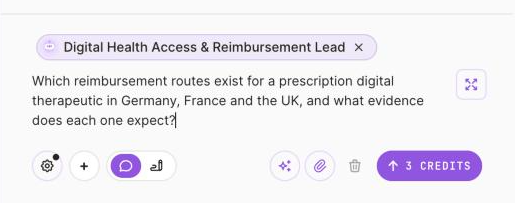
1 The price is on the Send button, before you click.
Screenshot 12 · The price is on the Send buttonOpen this screen → Open the account menu at the bottom of the sidebar, then Settings, then Cost center.
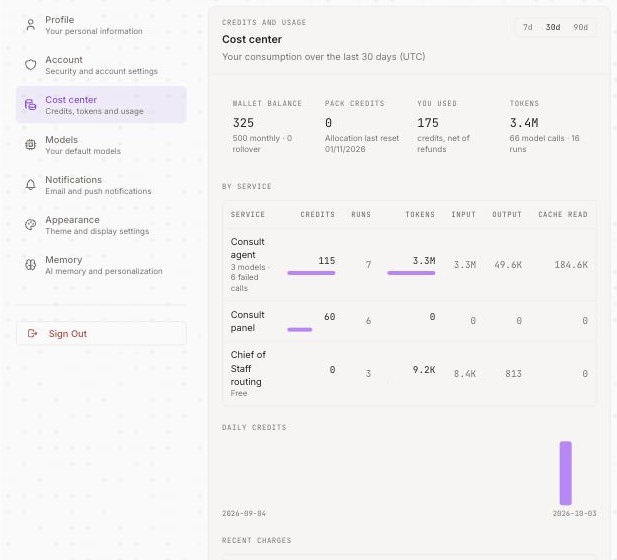
1 What is left this month.2 What you used, net of refunds.3 By service: credits, runs, tokens.
Screenshot 13 · Settings, Cost centerOpen this screen → Read Wallet balance (what is left this month), You used, and the By service table.
Recent charges lists every run, with its time and amount.
Your month at a glance.
If a charge does not match the price you saw, reply to any of our emails with the run's time; we check it with you.
Your plan, invoices and renewal are under Billing when it lands; until then, write to elias.naim@xroadscatalyst.com.